



How can I tell if something is interfering with my WiFi?
Home / Blog / Broadband tips / How can I tell if something is interfering with my WiFi?Reading time: 8 minutes
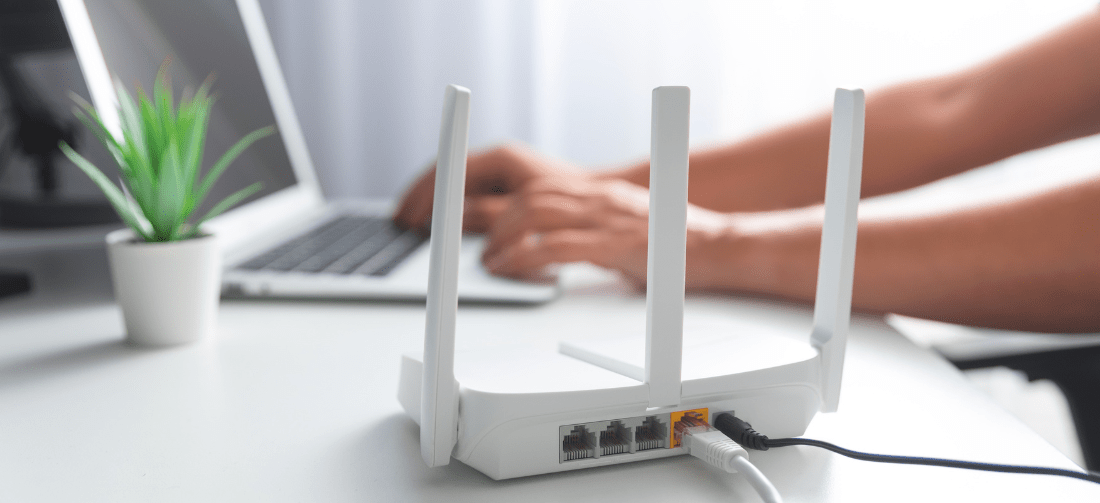
We’ve all been there: you’re streaming a show, gaming online, or in an important Teams call – and suddenly your WiFi stutters, slows, or drops out entirely.
Before you blame your provider, your router, or the coffee shop customers across the street for hacking your network, there’s one common (and easily fixed) culprit that’s often overlooked: interference.
WiFi interference can come from dozens of everyday sources, and identifying it can be the quickest and easiest way to restore your connection.
Signs that WiFi interference is a problem
Here are the tell-tale signs that something in or around your home may be disrupting your WiFi signal:
1. Frequent drops or brief disconnections
Your phone, laptop, or tablet keeps disconnecting and reconnecting without warning. This is especially noticeable in specific rooms or at certain times of day, and can feel like your WiFi is “flickering” rather than actually going down fully.
2. Slower speeds in specific spots
Some rooms or corners of your home consistently have weaker WiFi, even though they’re not far from the router. This usually points to physical obstacles (like walls or floors) or nearby electronic devices interfering with the signal’s path.
3. Performance fluctuates at peak times
Your connection clearly slows when multiple devices are online, even if no one is streaming or downloading anything heavy. This often happens when your WiFi is competing with neighbouring networks or household devices that are most active during busy periods, and is sometimes referred to as adjacent channel interference.
4. Devices show full bars but still lag
Your device shows a strong signal, yet pages take ages to load, videos buffer, and online calls stutter. This happens because signal strength actually doesn’t reflect signal quality – interference can corrupt the connection even when the bars on your device indicate you have full signal strength.
What’s interfering with my WiFi?
WiFi signals are radio waves, and just like tuning an old AM radio, if too many other “stations” are broadcasting on the same frequencies, you end up with noise, distortion, and dropouts instead of a clear signal.
Modern homes are packed with wireless devices, and many of them compete for the same limited airspace. The most likely culprits affecting your connection are:
Other WiFi networks
In apartment blocks, terraces, or dense neighbourhoods, dozens of nearby routers may be competing for the same WiFi channels. When multiple networks overlap, your router has to fight for airtime, which can lead to slower speeds, lag, and unstable connections – especially on the crowded 2.4 GHz band.
Microwave ovens
Surprisingly, microwaves operate on a frequency very close to 2.4 GHz WiFi. When the microwave is running, it can temporarily flood the airwaves with interference, causing brief dropouts or speed dips. This one is, unsurprisingly, often noticed during meal times.
Bluetooth devices
Wireless headphones, keyboards, mice, speakers, and game controllers all rely on Bluetooth, which also uses the 2.4 GHz spectrum. One device usually isn’t an issue, but several active Bluetooth connections at once can become a problem.
Cordless phones
Older cordless phones are particularly problematic, as many operate on the same frequencies as WiFi. If your internet slows or cuts out when the phone rings or is in use, this could be the cause.
Baby monitors and wireless cameras
These devices often transmit continuously and can be especially disruptive if they also use the 2.4 GHz band. Because they prioritise constant signal transmission, they can crowd out nearby WiFi traffic.
Thick walls and floors
Physical barriers don’t just weaken WiFi signals; they can reflect and scatter them, too. Brick walls, concrete floors, metal beams, and even underfloor heating can absorb or deflect WiFi waves, creating dead zones or causing iffy coverage.
Smart home devices
Smart bulbs, plugs, thermostats, doorbells, and appliances all add to the wireless “noise” in your home. Individually, they shouldn’t cause any problems, but together they increase congestion and competition for bandwidth, particularly on older routers.
Understanding what’s interfering with your WiFi is the first step toward fixing it, and in many cases, small changes can make a surprisingly big difference.
How to tell if interference is the problem
Not sure exactly what’s causing WiFi interference in your home or office? Here are a few ways to check:
1. Run a simple WiFi scan
Use your smartphone or laptop to scan nearby networks and see which channels are crowded.
To find out how to do this on your device, just search Google for: “How to run a wifi scan on [your device type]”
For example: “How to run a wifi scan on a Mac”, or “How to run a wifi scan on a Samsung phone”
2. Move around
If your WiFi improves dramatically in one room vs another, physical obstacles or nearby electronics may be the cause.
3. Test during off-peak times
If your WiFi improves late at night or early morning, interference from neighbours’ routers is likely at play.
4. Temporarily turn off other devices
Turn off all other devices that are connected to your WiFi or use Bluetooth (such as baby monitors and Bluetooth speakers) and see if performance improves. If the signal clears up, you’ve found the culprit.
5. Try wired vs wireless
If an Ethernet connection works fine but WiFi doesn’t, you’ll know it’s definitely not an internet outage, and it really must be one of the network performance factors mentioned above.
How to reduce WiFi interference
Once you suspect interference, a few small changes can make a surprisingly big difference. These fixes don’t require technical expertise, just a bit of trial and error.
Choose a less-crowded WiFi channel
Most routers automatically sit on popular 2.4 GHz channels like 1, 6, or 11, which are often shared with several nearby networks. If multiple routers are shouting over each other on the same channel, performance drops. Switching to a quieter channel in your router settings can immediately reduce congestion and stabilise your connection – no more co-channel interference for you.
Here’s how you do that:
- Log in to your router
- Open a web browser and type 192.168.1.1 or 192.168.0.1 into the address bar
- Enter your router username and password (often printed on the router itself)
- Find your WiFi settings
- Look for menus called Wireless, WiFi, Network, or Advanced Settings
- Select the 2.4 GHz WiFi network (if you see both 2.4 GHz and 5 GHz)
- Change the channel
- Find a setting called Channel
- If it’s set to Auto, try manually selecting a different channel
- Channels 1, 6, and 11 don’t overlap – if one is crowded, switch to another and see if performance improves
- Save and reconnect
- Save your changes
- Your WiFi may briefly disconnect – reconnect your devices once it comes back online
If things improve, brilliant – you’ve reduced co-channel interference. If not, you can always switch back or try another channel.
And some good news? If you’re an Airband customer, you can leave all that to us – just give us a call at 01905 676 121 or contact our support team, and we’ll get it sorted for you.
Use 5 GHz where possible
The 5 GHz band is faster and far less crowded than 2.4 GHz, making it ideal for streaming, video calls, and gaming. It doesn’t travel quite as far through walls, but within the same room or nearby rooms, it often delivers a cleaner, more reliable signal to the devices connected, with far less interference from household devices.
If your router offers both 2.4 GHz and 5 GHz WiFi, it’ll usually be listed as a separate network name with “5G” or “5 GHz” in it. To get on its wavelength, simply select it in your device’s WiFi settings and connect as normal.
Move your router
Router placement matters more than most people realise. A router tucked under a desk, inside a cupboard, or behind the TV has to fight its way through obstacles before the signal even reaches you. Positioning it centrally, elevated, and in open space gives your WiFi the best chance to spread evenly throughout your home.
Reposition interfering devices
Devices like microwaves, cordless phones, baby monitors, and Bluetooth hubs can all interfere with your router if they’re too close. Creating a bit of physical distance between these devices and your router reduces signal noise and helps your WiFi stay consistent.
Use WiFi extenders or mesh systems
In larger homes or properties with thick walls, one singular router is just not quite enough, and it’s likely to struggle no matter how well it’s positioned. WiFi extenders or mesh systems help carry the signal around obstacles and into hard-to-reach areas, reducing interference by strengthening coverage rather than forcing one router to do all the work.

When it’s not WiFi interference
Okay, so you’ve checked all of the above, and your WiFi is still acting up – it’s not WiFi interference. But don’t despair just yet! There are other factors worth investigating, which we’ll run through quickly:
A weak internet connection
Your WiFi signal might be perfectly healthy, but if the broadband connection feeding your router is slow, unstable, or dropping in and out, everything connected to it will suffer. This often shows up as buffering, poor video quality, or sudden slowdowns across all devices at once.
If you think this could be the case, running a simple speed test can help confirm whether your network performance issues lie with your WiFi or the internet connection itself.
Outdated router firmware
Routers rely on firmware (their internal software) to manage connections, security, and performance. If this hasn’t been updated in a while, your router may struggle with newer devices, modern WiFi standards, or known bugs that affect stability.
Checking for updates in your router settings is a quick win, because firmware updates often improve performance, reliability, and security in one go.
Too many connected devices
Every phone, laptop, smart TV, speaker, camera, and smart plug competes for a share of your available bandwidth. When several devices are active at the same time, your WiFi can feel sluggish even without wireless interference.
This is particularly noticeable in busy households or home offices, where usage spikes during evenings or work hours.
Router age
If your router is more than 5 – 7 years old, it may simply need replacing. Older models lack modern features designed to handle crowded networks, reduce interference, and manage multiple devices efficiently.
Upgrading to a newer router can dramatically improve performance, even without changing your broadband package.
Remember, interference isn’t your enemy – just your clue
If you’ve checked for interference, optimised your setup, and your connection still isn’t delivering the speed or reliability you need, the issue may not be inside your home at all – it could be the broadband connection feeding your WiFi.
Airband’s broadband packages are designed to deliver strong, consistent performance, even in hard-to-reach or rural areas. With reliable connectivity, modern network technology, and options to suit streaming, home working, and busy households, upgrading your internet package could be the simplest fix of all.
Explore Airband’s broadband packages and find a connection that keeps up with how you live, work, and stream.


Check availability:
